


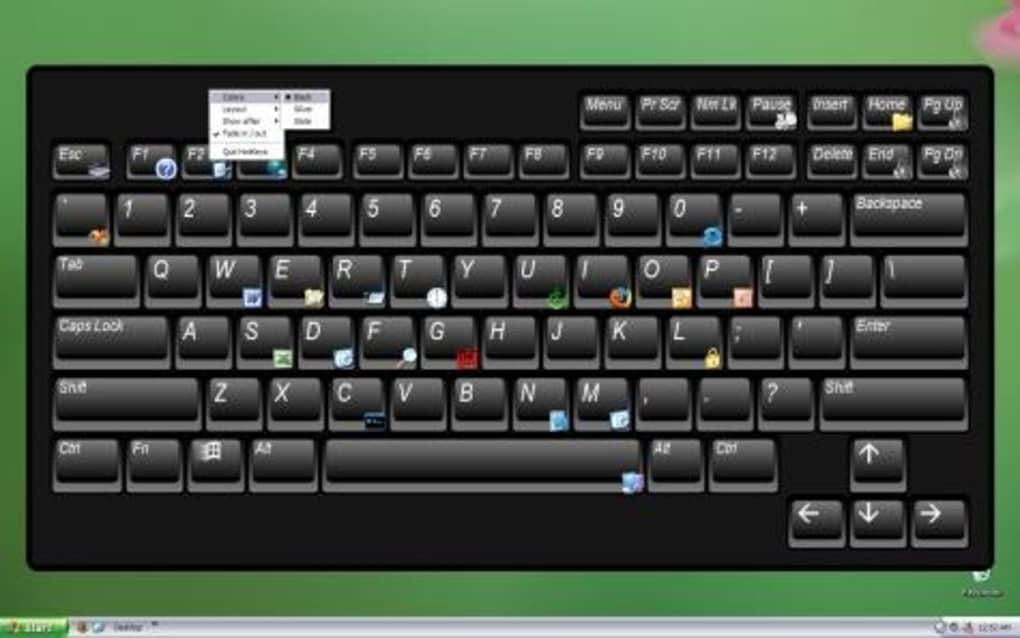
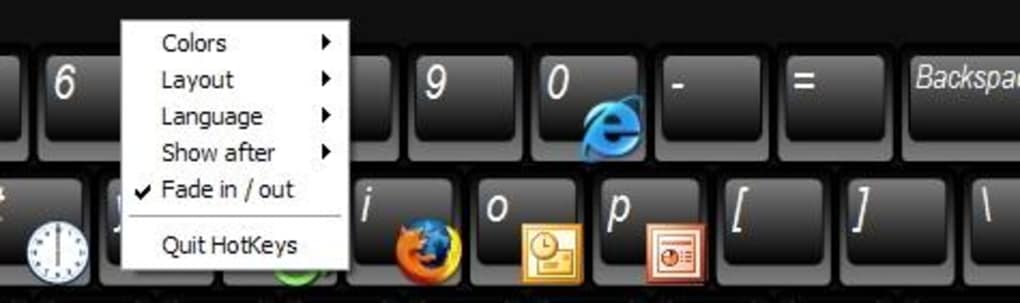
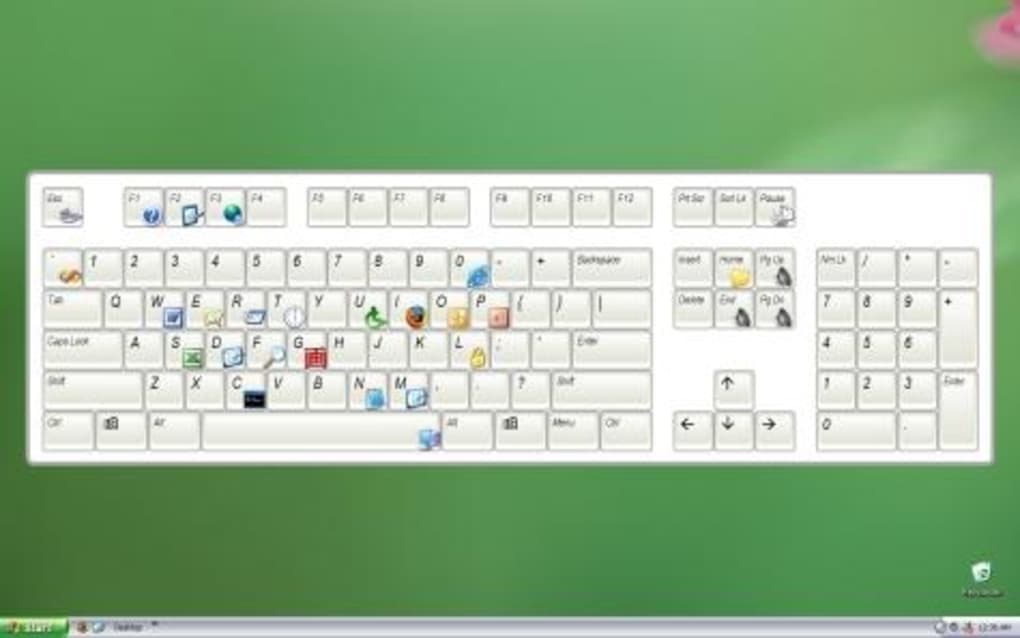
Description
Download Qliner Hotkeys – Free Keyboard Utility for Windows, Custom Hotkeys, Fast Task Automation
Qliner Hotkeys is a powerful, lightweight, and completely free keyboard utility designed for Windows users who want to boost productivity through custom hotkeys. This open-source tool allows you to assign keyboard shortcuts to launch applications, automate repetitive tasks, and control system functions with a simple key combination. Whether you're a power user, developer, or someone who just wants faster access to their favorite programs, Qliner Hotkeys delivers a seamless experience without bloating your system. With support for older Windows versions like XP and earlier, it’s a reliable solution for users still running legacy systems. The software is safe to download, regularly updated (last update: August 20, 2008), and has been trusted by over 21,000 users worldwide since 2006. Its minimal footprint and efficient performance make it ideal for low-resource environments. Perfect for users seeking a secure, free, and customizable way to streamline workflow, Qliner Hotkeys remains a standout in the category of software utilities.
Why Qliner Hotkeys Stands Out Among Keyboard Utilities
When it comes to enhancing keyboard efficiency on Windows, few tools offer the simplicity and reliability of Qliner Hotkeys. Unlike many modern alternatives that come with bloated interfaces and unnecessary features, Qliner Hotkeys focuses on what matters most: speed, customization, and minimal system impact. This free software is especially valuable for users still running older systems like Windows XP, where newer utilities may not be compatible. The software’s lightweight nature ensures it runs smoothly even on machines with limited RAM or processing power. One of its most impressive features is the ability to create custom hotkeys for launching applications, opening files, executing scripts, or triggering system commands. For example, you can assign Ctrl+Shift+T to open your favorite text editor or Alt+Ctrl+M to mute your microphone instantly. These shortcuts work system-wide, making navigation faster and more intuitive. The interface is clean and straightforward—no complex setup wizard or confusing menus. Just define your hotkey, select the action, and save. It’s perfect for users who want immediate results without learning curves. Additionally, being open-source means the code is transparent and auditable, which enhances security and trust. Users can even contribute to the project or modify it for personal use. With over 21,000 downloads and consistent use across countries like India, Thailand, and the U.S., Qliner Hotkeys has earned its reputation as a dependable, secure, and efficient keyboard automation tool.
How to Install and Use Qliner Hotkeys for Maximum Efficiency
Installing Qliner Hotkeys is a quick and hassle-free process, especially for users who value simplicity. Begin by downloading the latest version—currently 2.0.1—from a trusted source. The file size is minimal, ensuring fast downloads even on slow connections. Once downloaded, run the installer (typically a .exe file) and follow the on-screen prompts. Since it’s a portable application, you can also run it directly without installation if preferred. After launching, the main window displays a simple list of hotkeys you’ve defined. To create a new shortcut, click the “Add” button. You’ll be prompted to choose a key combination—such as Ctrl+Alt+P—and then select the action. Options include launching a program, opening a file, running a batch script, or executing a system command. For instance, you can assign a shortcut to open your default browser with a specific bookmark or start a backup script with one keystroke. The software supports both standard and advanced key combinations, including modifiers like Ctrl, Alt, Shift, and Windows key. You can also set hotkeys to work only when a specific application is active, adding an extra layer of control. To test your new shortcut, simply press the assigned keys and verify it triggers the intended action. The tool runs in the background, consuming minimal CPU and memory. You can access it via the system tray icon, where you can enable/disable hotkeys or edit existing ones. With clear instructions and intuitive design, even non-technical users can set up powerful automation within minutes. Regular updates ensure compatibility and security, and the open-source model encourages community-driven improvements.
Compatibility, Security, and Performance Features
One of the standout advantages of Qliner Hotkeys is its broad compatibility with older Windows operating systems. It officially supports Windows XP and earlier versions, making it a rare gem for users still relying on legacy systems. While newer utilities often drop support for outdated OS versions, Qliner Hotkeys continues to function reliably on these platforms. This makes it an excellent choice for businesses, educators, or individuals using older hardware. Despite its age, the software remains secure and free from malware, thanks to its open-source nature and long-standing community validation. The code is publicly available, allowing developers to audit it for vulnerabilities and ensure it doesn’t contain hidden tracking or malicious behavior. Performance-wise, Qliner Hotkeys is remarkably efficient. It uses less than 5 MB of RAM at idle and rarely spikes CPU usage, even when multiple hotkeys are active. This ensures it won’t slow down your system or interfere with other applications. The tool runs silently in the background, and you can disable it entirely via the system tray menu. It’s also compatible with external keyboards and various input devices, making it versatile for different setups. For users concerned about privacy, there’s no telemetry or data collection—your hotkey configurations remain local and private. Whether you’re using a desktop, laptop, or thin client, Qliner Hotkeys adapts seamlessly. Its stability over more than 15 years (since 2006) speaks volumes about its reliability. With consistent download numbers and a loyal user base, it continues to prove that simplicity and longevity can coexist in software design.
- Feature List: Custom keyboard shortcuts, system-wide hotkey support, launch apps/scripts, portable mode, open-source, lightweight, system tray integration, compatible with Windows XP and earlier
- Pros: Free and open-source, lightweight, works on old systems, secure, easy to use, no ads, minimal resource usage, portable option
- Cons: No recent updates (last in 2008), lacks modern UI, no support for Windows 7/10/11, no mobile versions (Android/iOS), limited documentation
Frequently Asked Questions (FAQ)
Is Qliner Hotkeys safe to download and install?
Yes, Qliner Hotkeys is completely safe to download and install. It’s a free, open-source software with no malware, ads, or hidden tracking. The source code is publicly available for review, ensuring transparency and security. Thousands of users have downloaded it safely since 2006.
Can I use Qliner Hotkeys on Windows 10 or 11?
While Qliner Hotkeys is officially designed for Windows XP and earlier, some users have reported limited success on Windows 10 and 11 using compatibility mode. However, full functionality is not guaranteed, and it’s recommended for older systems only.
Is Qliner Hotkeys really free?
Yes, Qliner Hotkeys is completely free and open-source. There are no hidden fees, subscriptions, or premium features. You can download, use, modify, and distribute it under the open-source license.
How do I create a custom hotkey?
Launch the app, click “Add,” choose a key combination (e.g., Ctrl+Shift+X), select the action (launch app, open file, run script), and save. The shortcut will be active immediately.
Can I use Qliner Hotkeys with external keyboards?
Yes, Qliner Hotkeys works with standard and external keyboards. It captures key presses system-wide, so any connected keyboard will support your custom hotkeys.
Final Verdict: A Time-Tested Tool for Keyboard Power Users
Qliner Hotkeys remains a remarkable example of efficient, no-frills software that delivers real value. Despite its last update in 2008, its core functionality is rock-solid, and its lightweight design ensures it runs smoothly on older systems where modern tools fail. For users still on Windows XP or seeking a secure, free, and customizable way to automate tasks, Qliner Hotkeys is an excellent choice. While it lacks modern features and support for newer Windows versions, its simplicity, reliability, and open-source nature make it a trusted tool in the software utilities category. If you're looking to streamline your workflow with custom hotkeys and don’t mind using a legacy application, this is one of the best free keyboard utilities available. Download Qliner Hotkeys today and reclaim control of your keyboard with powerful, instant shortcuts.
Download Now: Get this free, secure, and lightweight keyboard utility for Windows and start automating your daily tasks in seconds.
Guides & Tutorials for Qliner Hotkeys
How to install Qliner Hotkeys
- Click the Preview / Download button above.
- Once redirected, accept the terms and click Install.
- Wait for the Qliner Hotkeys download to finish on your device.
How to use Qliner Hotkeys
This software is primarily used for its core features described above. Open the app after installation to explore its capabilities.
User Reviews for Qliner Hotkeys 0
No reviews found





